Projects on a Timeline, Your Life Above Them
A project timeline shows phases as bars and milestones as points. In AnnuCal your calendars run above every project, so you see a collision before it happens.
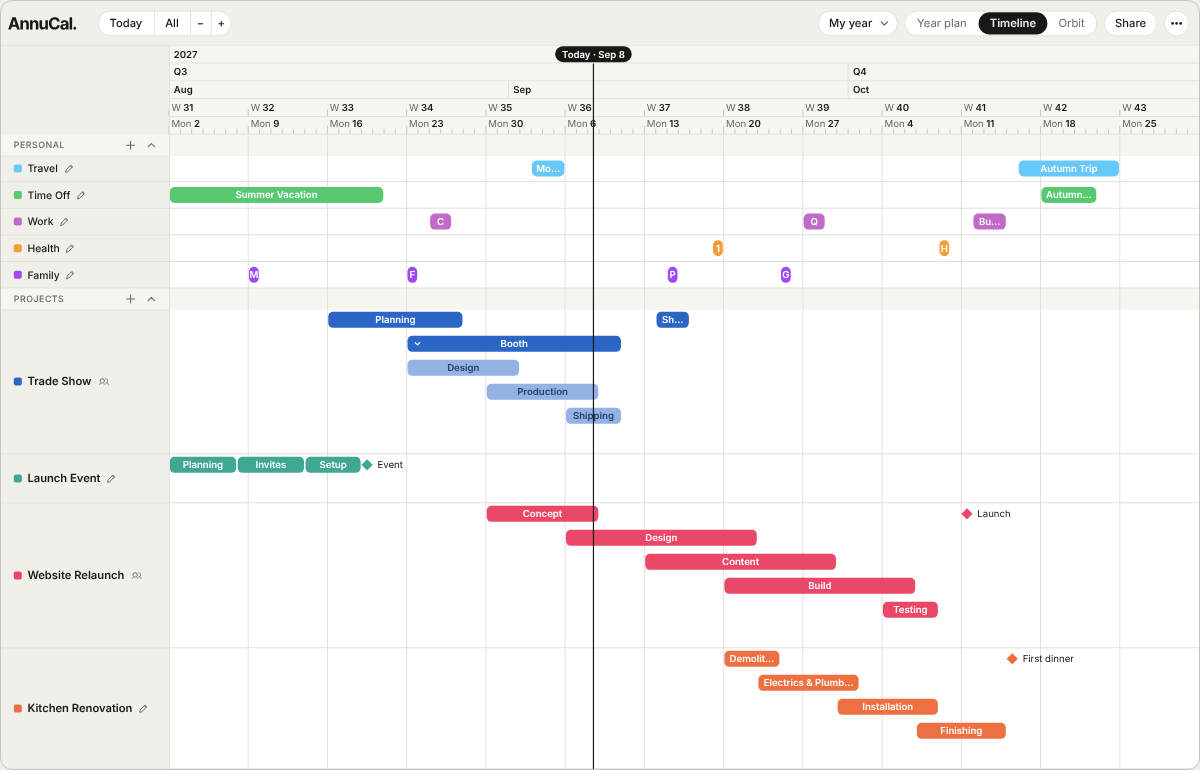
A project timeline lays out a project as rows of phases - each phase a bar from its first to its last day, each milestone a point - so you see how long things take and what overlaps. The AnnuCal Timeline adds one thing most project timelines leave out: your own calendars run above every project. The road trip, the school break, the week you are away sit directly over the launch phase, and a collision is visible weeks before it would have cost you something.
This guide explains what the Timeline shows, how it differs from the year plan, how you build a project in it, and what is included in Free and Pro.
What the Timeline shows
A project is a row. Inside it, phases are bars: development, pre-production, shooting, post - or packing, driving, the week at the coast. Milestones are points on the same axis: the day the contract is signed, the premiere, the departure. Phases that overlap stack underneath each other by themselves. And when a phase has phases of its own - the build with its three trades, the campaign with its channels - you put them inside it: the parent phase folds them away or shows them, in the same colour, a shade lighter. Flat or nested, as the project needs.
Above the projects run your calendars - the same ones your year plan is made of. Travel, family, work, health, each in its colour, each as bars over the same days. That is the part that makes a Timeline a planning view rather than a chart: the plan for the project and the plan for your life share one axis.
The axis is zoomable. One click takes you from a week to a quarter, a year, several years - a decade if the project needs it. A renovation reads at the level of weeks; a film from first draft to release reads at the level of a year or two.
Timeline and year plan: two views of one year
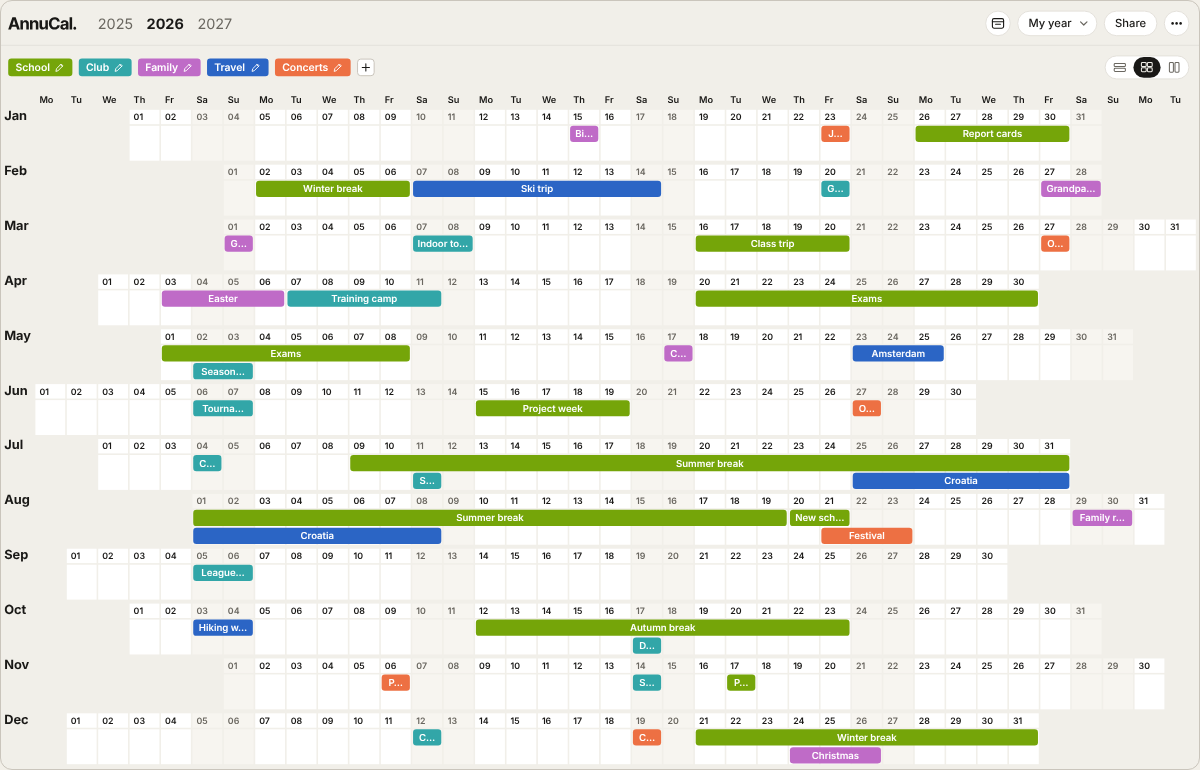
The year plan answers “what does my year look like?” - twelve months on one screen, every entry a bar in the colour of its calendar. The Timeline answers “how does this project fit into that year?” Both show the same data. Add a phase on the Timeline, and the days it covers are busy in your year; move a holiday in the year plan, and it moves above your projects.
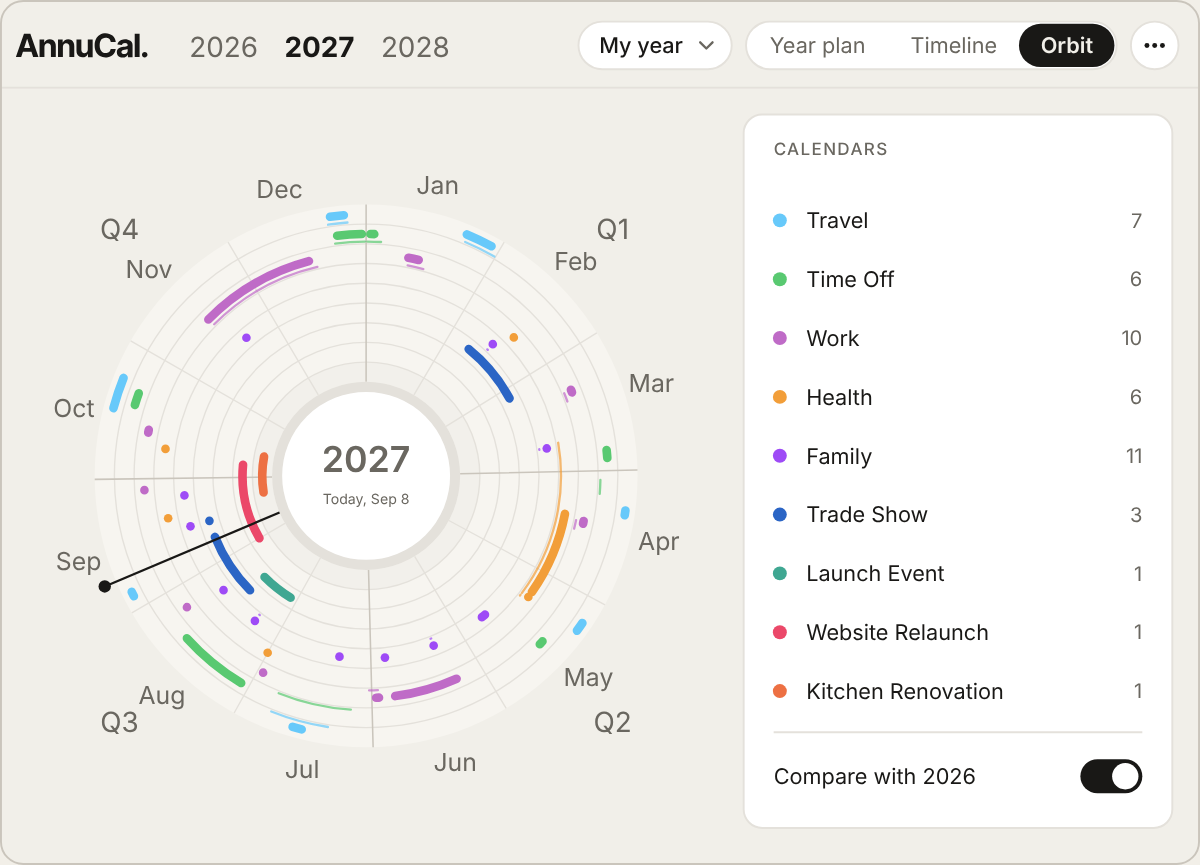
So the two are not alternatives. You plan the shape of the year in the 12-month view and the shape of a project on the Timeline, and switch between them with one click. Orbit, the third view, shows the same year as a ring - what Orbit shows you is covered in its own article.
Building a project
- Create a project and give it a name and a colour.
- Add phases as bars. Drag the ends to set their length; move a phase, and what depends on it is visible at once.
- Set milestones - single days that matter: the deadline, the opening, the move.
- Nest phases when one belongs inside another: in the phase’s panel under “Part of”, or by dragging it onto the parent. The parent moves its phases with it.
- Keep a checklist inside the project for what has to be done but has no date of its own - the permit, the booking, the call.
- Zoom to the level the project needs, from a week to a decade.
- Share it as a link for people who should see it, or invite someone to edit the project with you.
If you would rather not start from an empty row, the Timeline templates are ready-made projects: a road trip, a film production, a concert or festival, a product launch, a move, a thesis. Each is counted from one date you choose, so the phases land on your dates before you have typed a thing.
Days, not hours. Plans, not tasks.
The Timeline is deliberately not a task manager. It knows days, not hours; phases, not tickets. That is the level at which a year is planned: a phase of three weeks, a milestone on a Friday, a holiday that cuts the phase in two. For the hourly work inside a phase there are other places. The Timeline keeps the picture above them - and your life in that picture, where project plans usually forget it.
This follows from Time-First Planning: start with spans of time, see them next to each other, and let the days follow.
What Free and Pro include
In Free you open the Timeline with your own calendars as rows - from a week to several years - and you can view projects that have been shared with you. Creating your own projects, with phases, nested phases, milestones and checklist, is part of Pro, and so are the Timeline templates. Every new account starts with 30 days of Pro, so you can build your first project on day one. The details are on the pricing page.
Frequently asked questions
What is a project timeline? A view that lays out a project along a time axis: phases as bars from their first to their last day, milestones as points. It shows how long things take, what overlaps and what comes after what.
How is the AnnuCal Timeline different from a Gantt chart? It plans in days, not hours, and has no tasks, owners or dependencies to maintain - phases stack by themselves, and a phase can hold phases when you want that, nothing more. And your own calendars run above every project, so holidays, school breaks and other commitments are in the same picture as the project.
Can I see my holidays next to my projects? Yes. The calendars of your year plan run above the projects on the Timeline, each in its colour, over the same days.
How far can I zoom? From a single week to a decade, with one click on the axis.
Is the Timeline free? The Timeline with your own calendars is included in Free; projects shared with you can be viewed. Creating projects and loading Timeline templates are part of Pro. Every new account starts with 30 days of Pro.
Can several people work on a project? Yes. Share it as a link for viewing, or invite someone as an editor to plan the project with you.
👉 See a year with projects below it and life above them: try the demo - no sign-up needed.
Plan your whole year on one screen.
Open the demo and see how a year feels when you can see all of it. No account needed.
Try the demo - no sign-up